
Seamless visitor & employee check in
Let SwipedOn take care of all your reception desk processes - visitor management, receiving deliveries, employee in-out, visitor screening and more! Go from a paper visitor book to a secure, touch free digital solution in under 10 minutes.

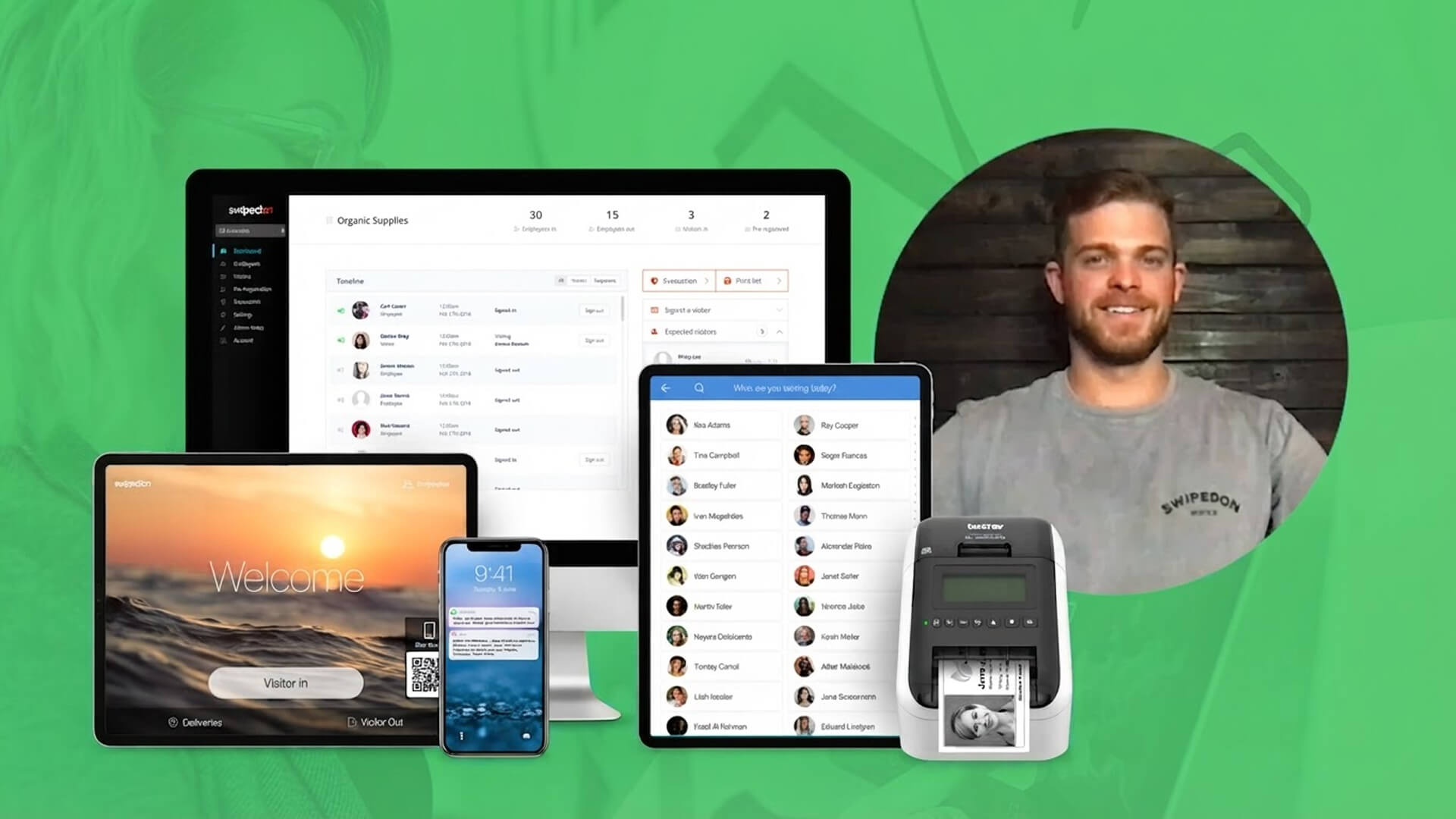

How to activate your SwipedOn account
-
Create your account
Register for a SwipedOn account here. Please register your 'Company name' as: DHL + [Account #] + [Location Name]
-
Go to your main account page
Login to your admin web dashboard and navigate to your account page, found in the left-hand menu.
-
Select currency and plan
Choose USD, then select 'Get Started' under the Enterprise plan box. Ensure you have: Enterprise plan selected; 'Number of locations required' set to 1 (or more if you require more locations); Annual selected for 'Payment Frequency'
-
Select AddOns
If your location requires any AddOns, such as SMS notifications, you can add them now.
-
Apply special DHL coupon code for 40% off
When checking out, enter coupon code: DHL40DISCOUNT in the 'Promo code' box. Then click, Apply. Please note: This code is valid for the Enterprise plan only.
-
Payment Details
Add your payment details and go!

Setup & support
Find the answers to your setup questions in our support articles below.
- How to activate your subscription
- How to upgrade to a multi-location plan
- Enabling touch free visitor sign in
- How to configure new locations on an Enterprise plan
- Integrations
- Employee roaming (multiple locations)
- Configuring SwipedOn


Contact us
Chat now

Use our online chat for real-time account support or general product help.
Book an onboarding call

Schedule a time with our team to ensure your account is set up correctly.