![swipedon-orange.png]](https://www.swipedon.com/hs-fs/hubfs/swipedon-orange.png?height=40&name=swipedon-orange.png)
How to change your password
- To update or change the password that is associated with your admin profile, log into the SwipedOn web dashboard and click on your avatar in the top right corner of the screen.
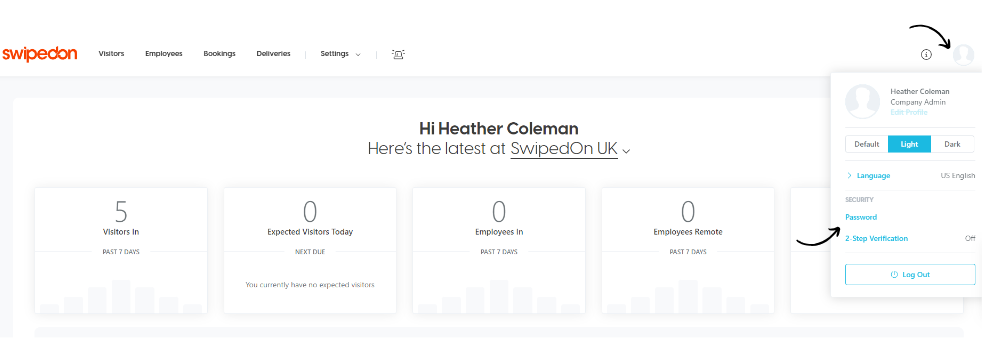
- Selecting the Password button in the profile menu will open a pop up prompting for the current and new password.
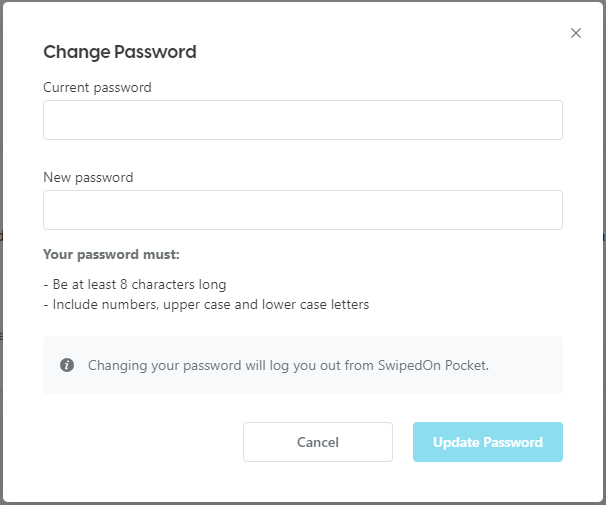
- A green tick will appear next to the 'update password' button and the pop out window will close once the steps have been completed.
- Alternatively, an admin can reset the password using the 'forgot my password' link that is available when signing into the SwipedOn web dashboard.